Add Collaborators to a Project
This guide explains the steps to invite collaborators to the entire project. This option assigns members to all stages of the project and is ideal when you want to involve team members across the entire project, rather than focusing on individual stages.
When to Add Collaborators to a Project
- When you need to involve team members across the entire project and all of its stages.
- When you have assigned global roles to collaborators that apply to all project stages.
To Add Collaborators to a Project
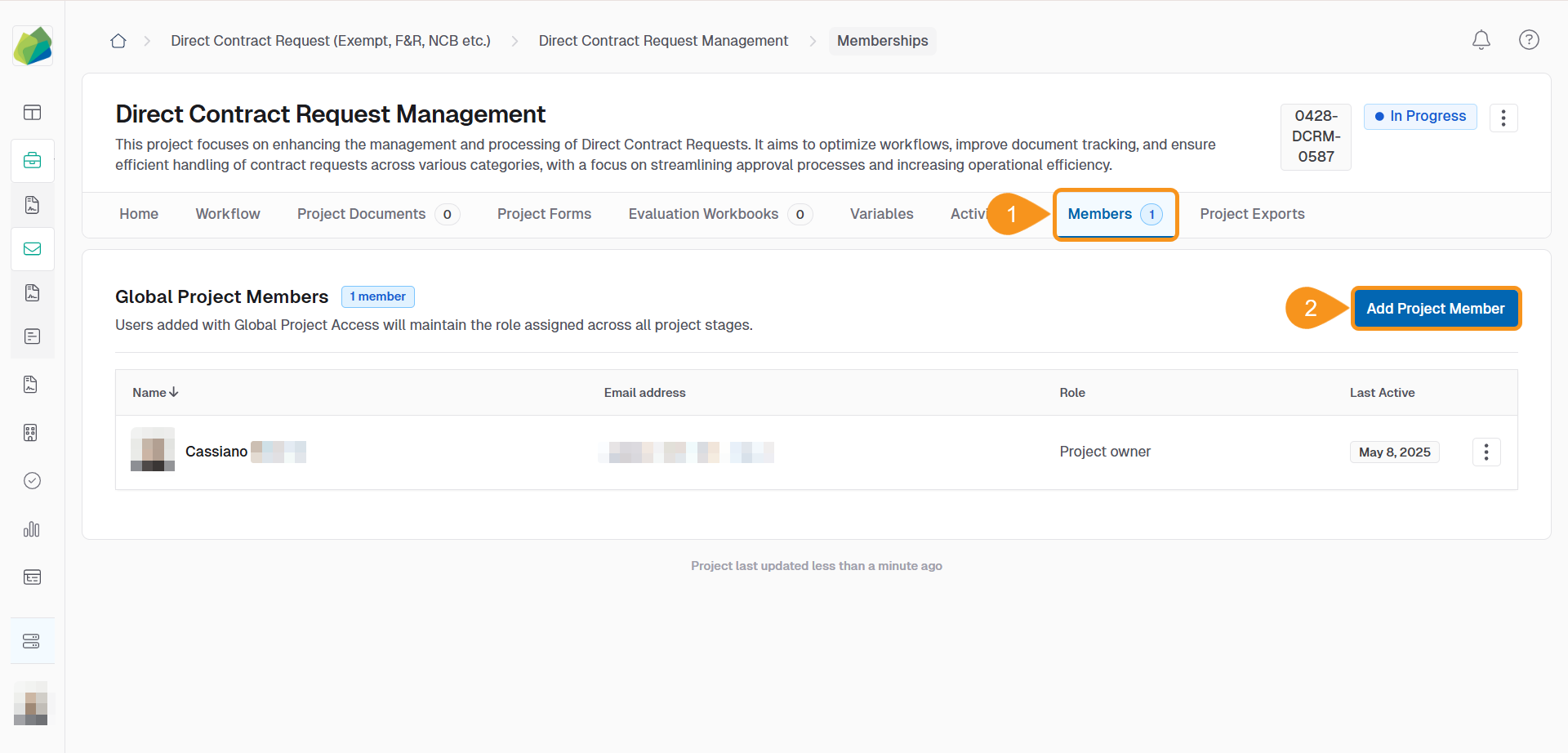
- In the project home, click on the Members tab. If Global Project Members was selected for Project Member management, you will see a list of members assigned to all stages of the project.
- Click Add Project Member.
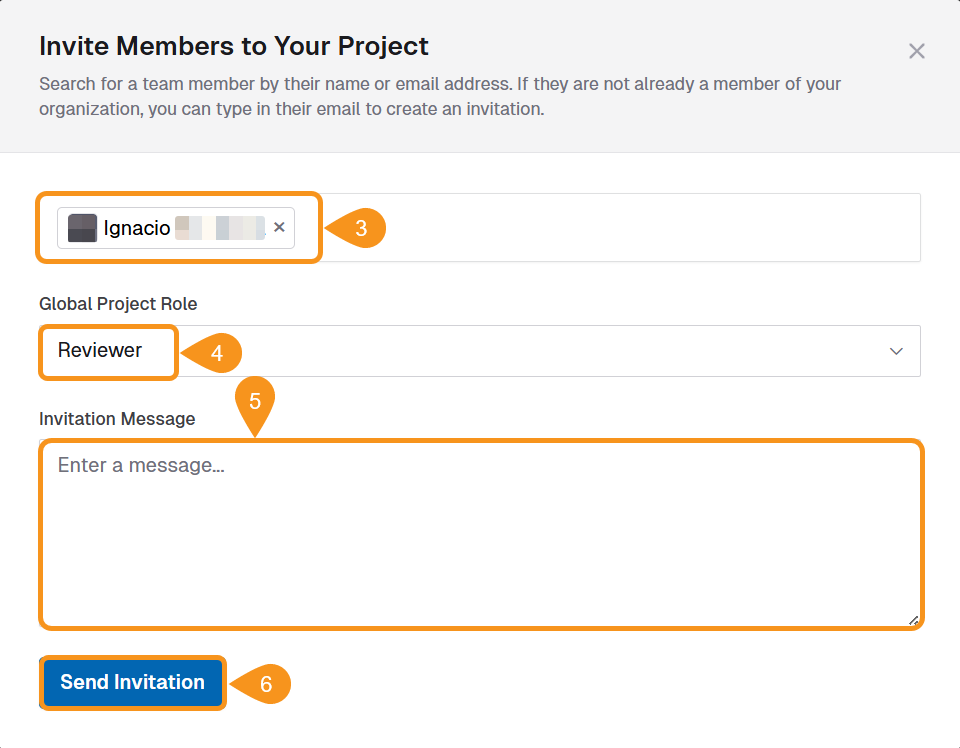
- Type the Team Member’s name.
- If they have not previously been invited to the organization, you can also type the user’s email address to send them access to the organization and the project they are being invited to.
- Hit enter on your keyboard to input the user to the list.
- You can invite more than one user at a time.
- Select their Global Project Role. (e.g., Manager, Editor, Controbutor)
- (Optional) Add an Invitation Message to the Team Member(s).
- Click Send Invitation.
See Also
To complement your knowledge of this process, check the following pages: