Add Global Members to Approval Steps
This guide explains how to assign specific users to an approval step when the same individuals are responsible for completing that step every time. Assigning global users ensures consistency across all projects using the template.
When to Add Global Members to Approval Steps
You should add global members when:
- The approver for a given step is always the same person or group.
- You want to avoid assigning placeholders or dynamic roles.
- You need to streamline the configuration process with known, fixed participants.
To Add Global Members to a Steps
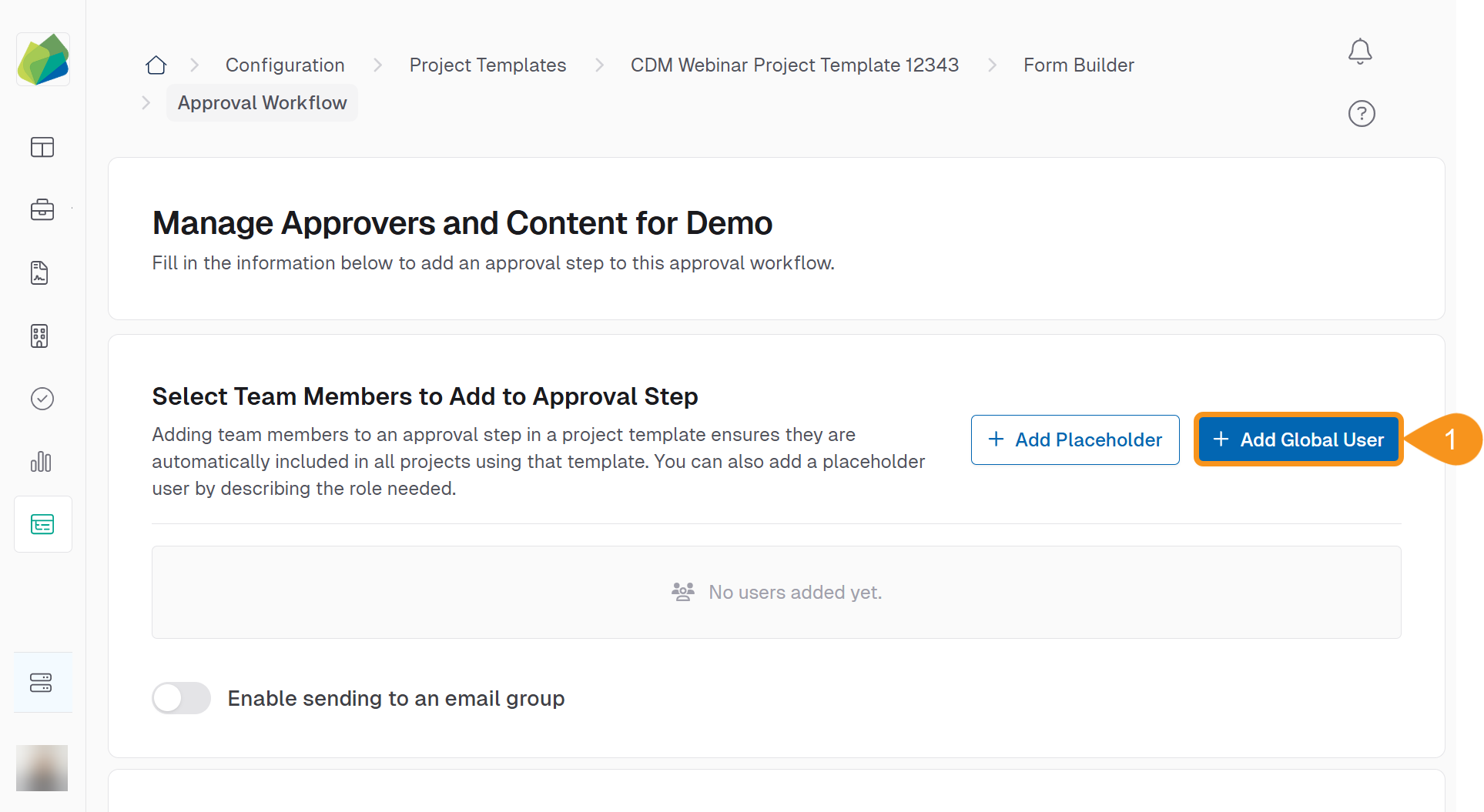
- Click the + Add Global User button.
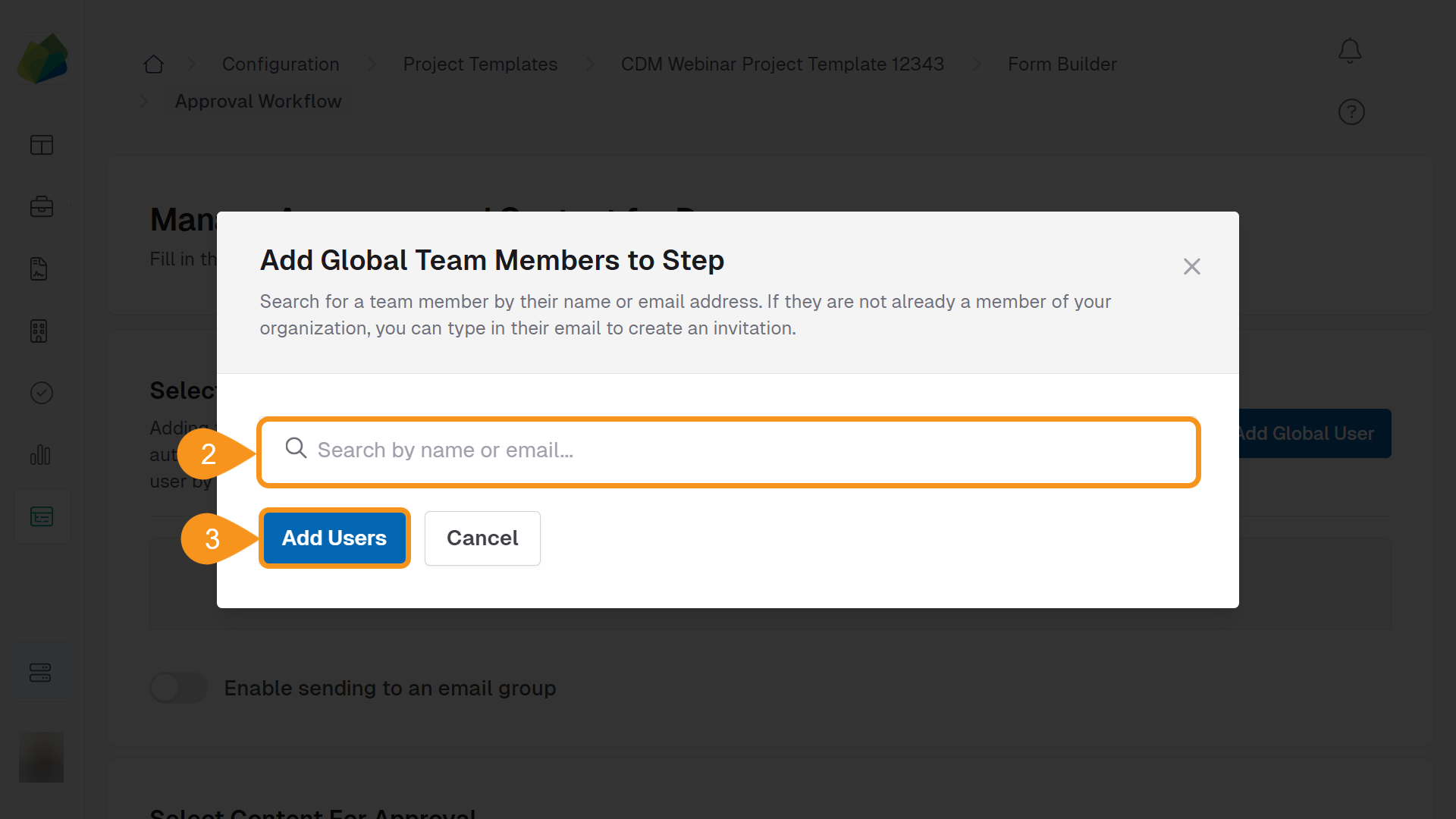
- In the input field, type the global user’s name or email.
NoteYou can add multiple users by typing more names or emails and clicking to select them one by one.
- Click the Add Users button to confirm your selection.
The selected users are now permanently assigned to the approval step for all projects based on this template.
See Also
To complement your knowledge of this process, feel free to check the following pages: