Reorder Approval Steps
This guide explains how to reorder approval steps within a multi-step approval workflow. Reordering helps ensure the approval sequence follows the intended logic and responsibilities.
When to Reorder Approval Steps
You should reorder steps when:
- Steps were added out of sequence.
- The approval order has changed due to updated business requirements.
- You need to insert or move steps based on role or priority.
To Reorder Approval Steps
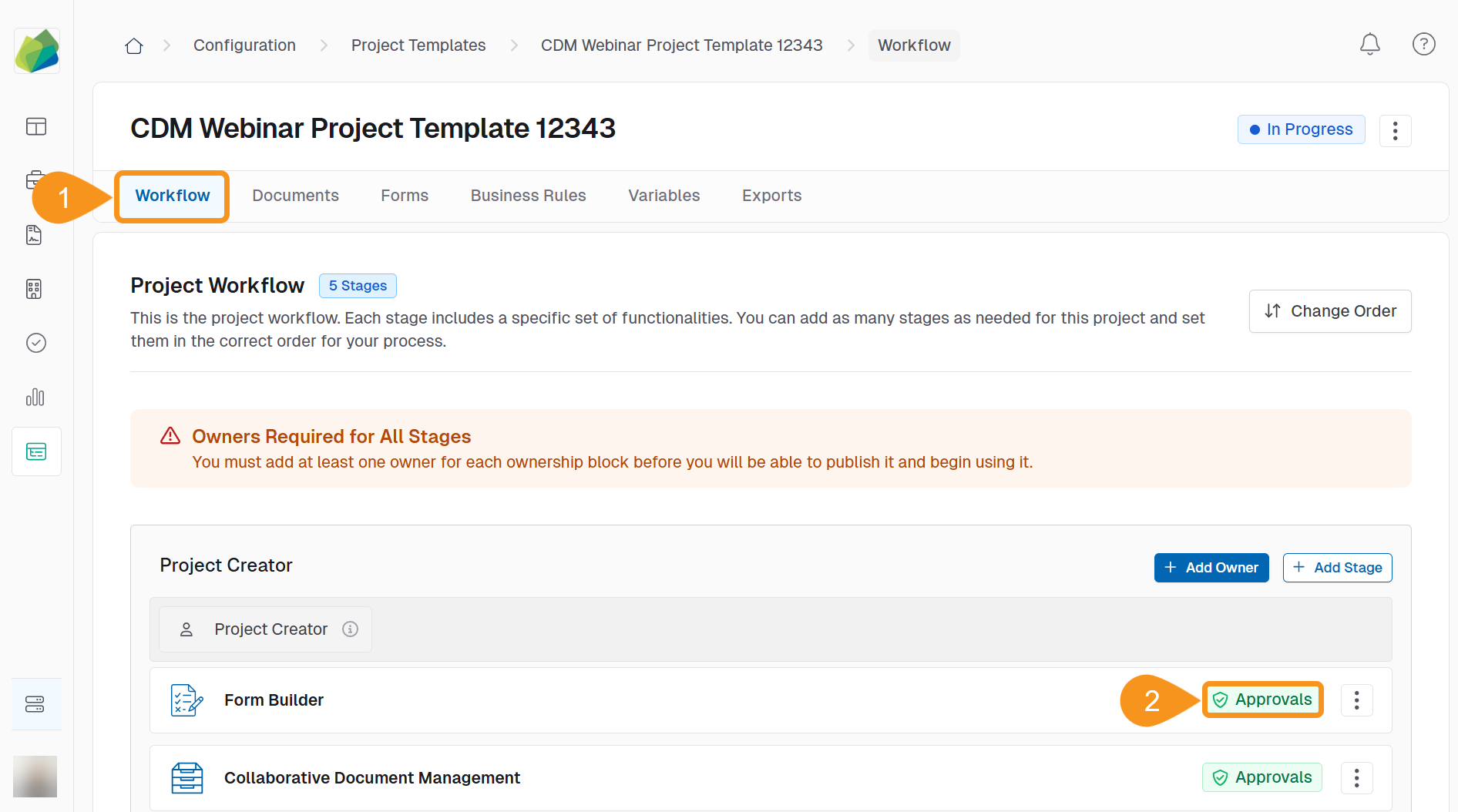
- Go to the Workflow tab of your project template.
- Click the green Approvals banner on the desired stage.
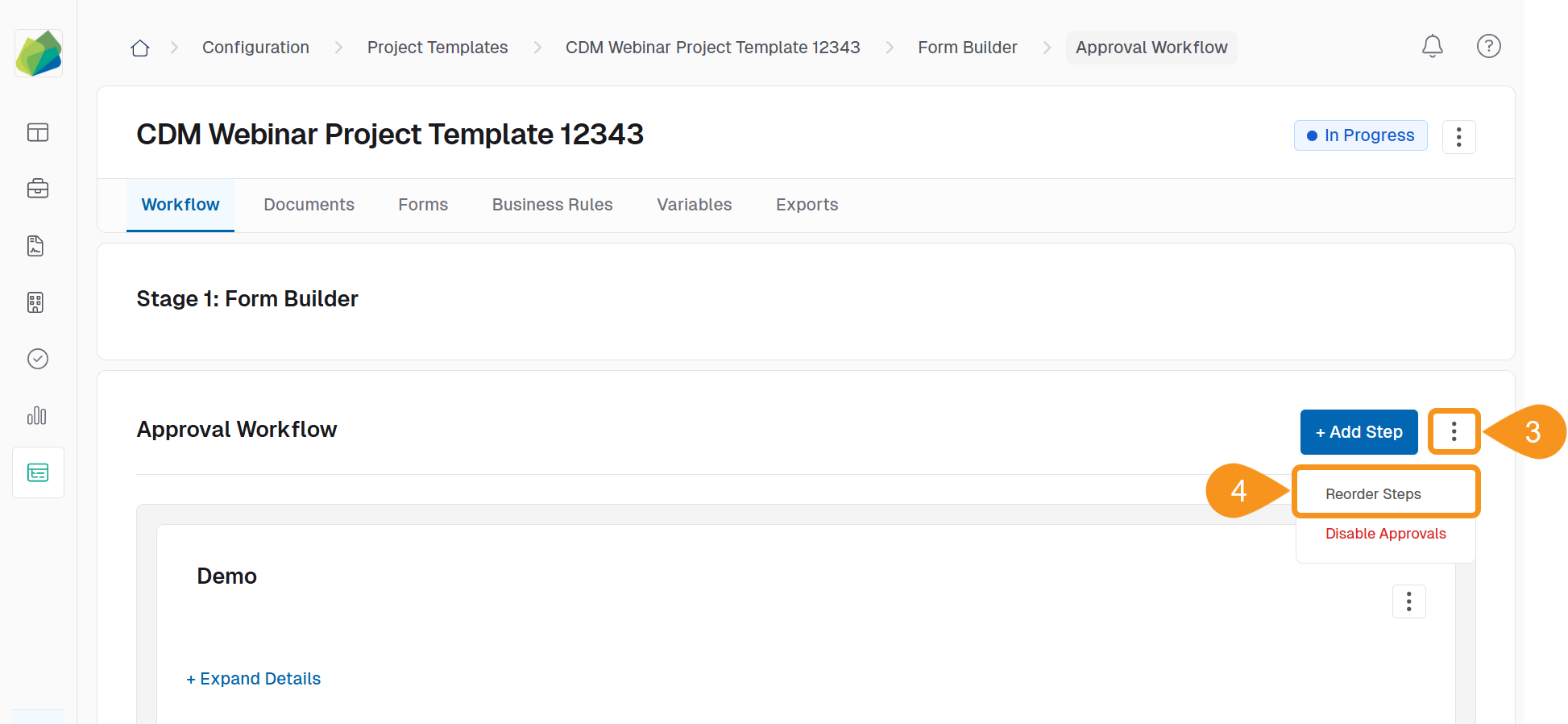
- Click the kebab menu next to the + Add Step button.
- Select Reorder Steps from the dropdown.
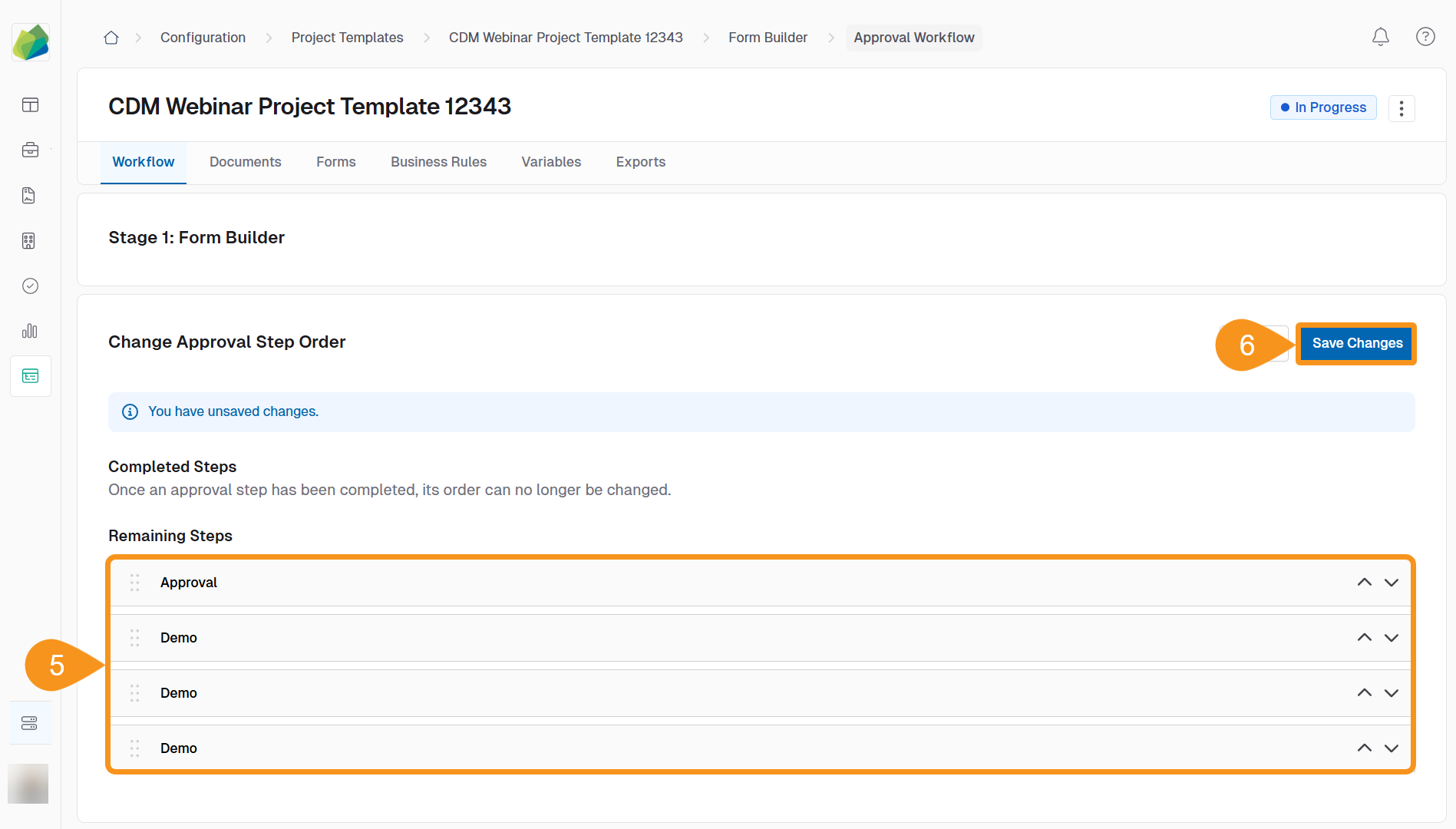
- Drag and drop the steps into your desired sequence.
NoteAs you reorder steps, a blue banner will appear indicating you have unsaved changes. If you leave the page before saving, your changes will be lost. - Click Save Changes to apply the new step order.
See Also
To complement your knowledge of this process, feel free to check the following pages: